How to set up the Upsurge Shopify app
Connect your Shopify store to Upsurge, bring in the data you need, and configure the storefront embed and app blocks for your theme. This setup is currently for stores included in the allowlisted pilot.
Before you start
- Your Shopify store is included in the Upsurge pilot allowlist.
- You can open apps and edit the active theme in Shopify admin.
- You have an Upsurge account. You can choose a site you own or create one during linking.
The illustrations are reconstructed from the product source and do not show a live merchant account. Example products and campaigns are illustrative. Select any illustration to view it at full size.
1. Install the pilot app
In Upsurge, open Dashboard → Integrations, choose Shopify, and select Connect. In the Upsurge-managed Shopify app dialog, select Install Upsurge Shopify app, review the requested access in Shopify, and approve the installation. This option is available only for stores included in the allowlisted pilot.
2. Open the Upsurge link flow
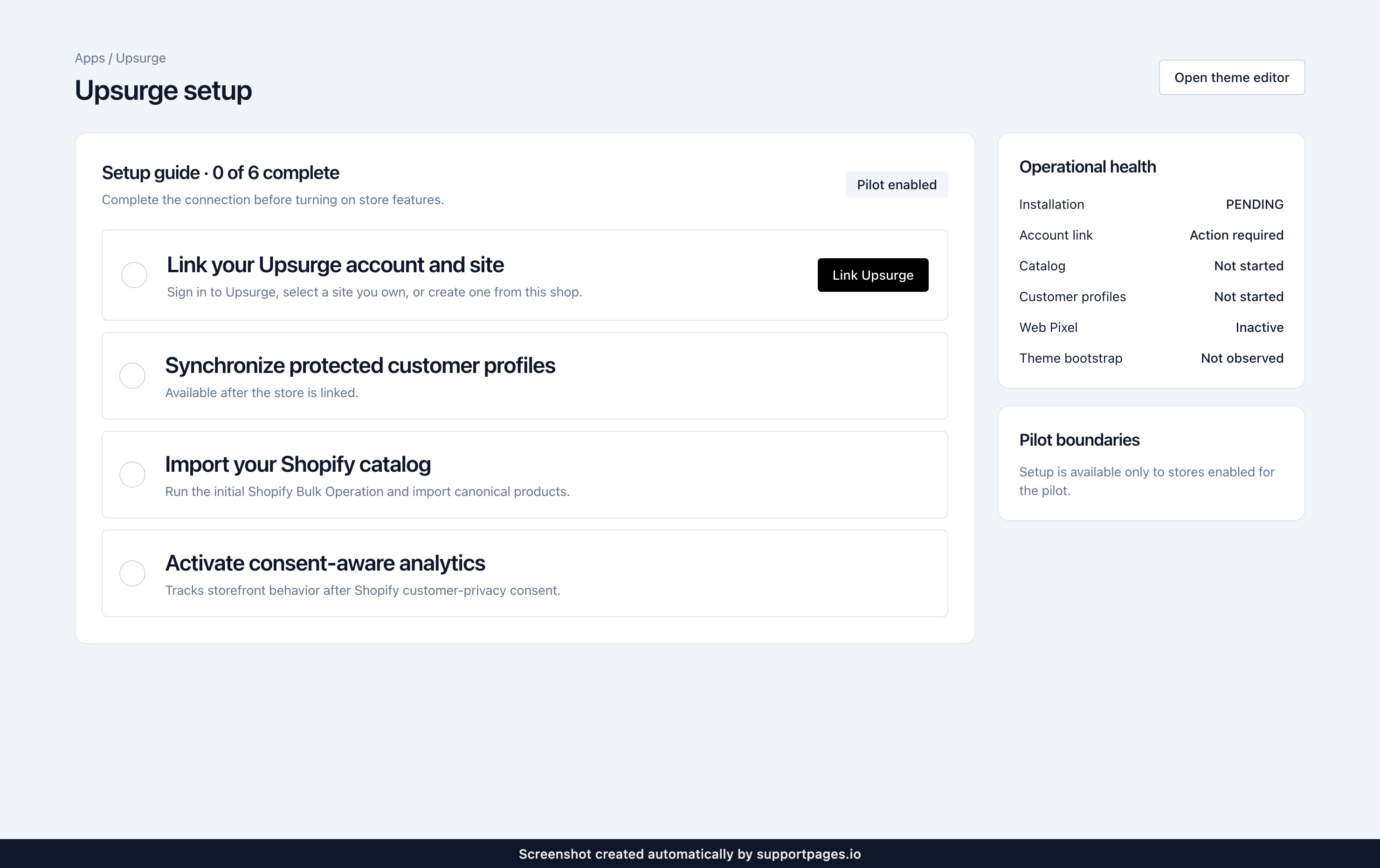
Open Upsurge from your Shopify admin, then select Link Upsurge on App Home. Shopify sends you to the secure Upsurge connection page.
3. Choose an Upsurge site
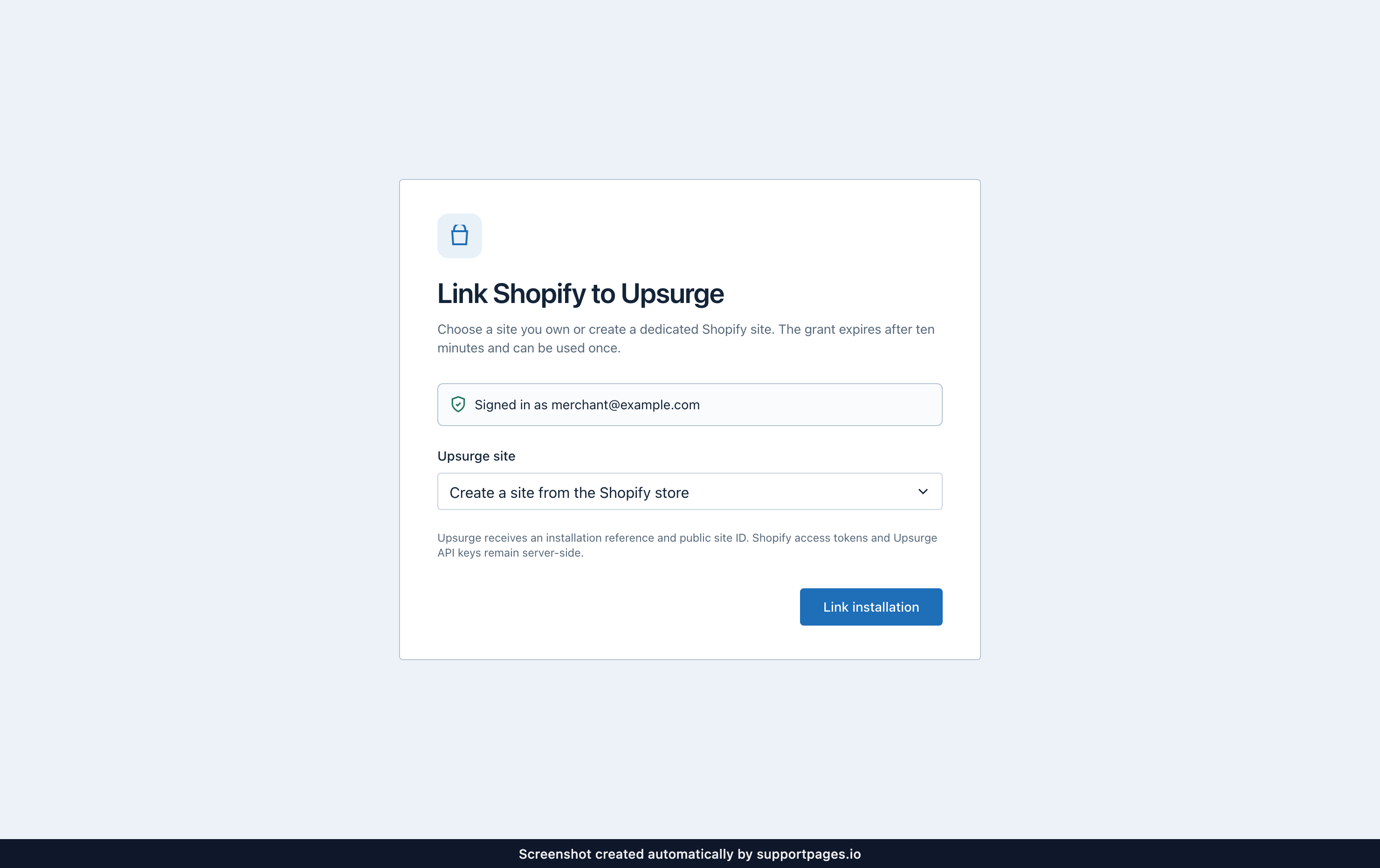
Sign in to Upsurge if prompted. Under Upsurge site, choose a site you own or keep Create a site from the Shopify store, then select Link installation within ten minutes of opening the link flow.
4. Sync your store data
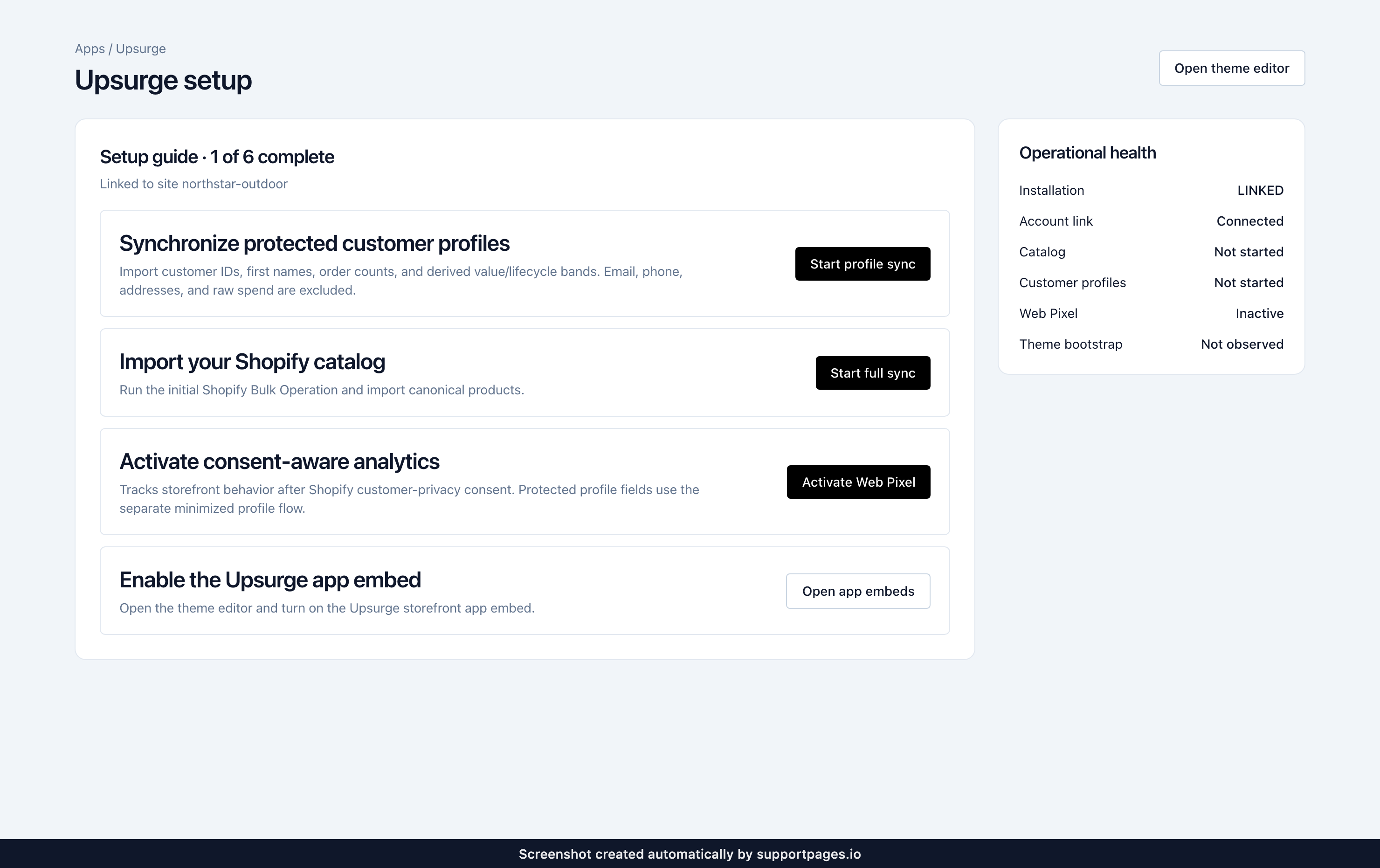
Back on App Home, select Start full sync to import your catalog. Select Start profile sync only if you want to import the minimized customer-profile fields used for personalization; this is separate from Shopify's storefront consent controls.
5. Turn on consent-aware analytics
Select Activate Web Pixel on App Home. The pixel sends storefront behavior only after Shopify's customer-privacy consent allows it. If the pixel is already active and you need to refresh its registration, use Update Web Pixel instead.
Choose the storefront features you need
| Feature | Where to configure it | What it adds |
|---|---|---|
| Upsurge storefront | App embeds | Theme search, cart-drawer recommendations, and the runtime for popups, chatbots, and embedded overlays. |
| Upsurge recommendations | An app block in a page section | Inline recommendations or a manual bundle, with campaign and appearance controls. |
| Upsurge Smart Search | An app block in a page section | Search results or a published Smart Collection grid. |
| Upsurge embedded overlay | An app block in a page section | An active embedded campaign at the block's location. |
Add only the blocks you need. Have the relevant campaigns or published Smart Collections ready in Upsurge; the embedded campaign creation steps are included below.
6. Open the correct theme and template
In Shopify admin, open Online Store, find the theme you want, and select Edit theme. Select the page template you want to change before adding a block; app blocks are saved per template. Shopify's theme app guide covers app blocks and app embeds in the current editor.
7. Turn on and configure Upsurge storefront
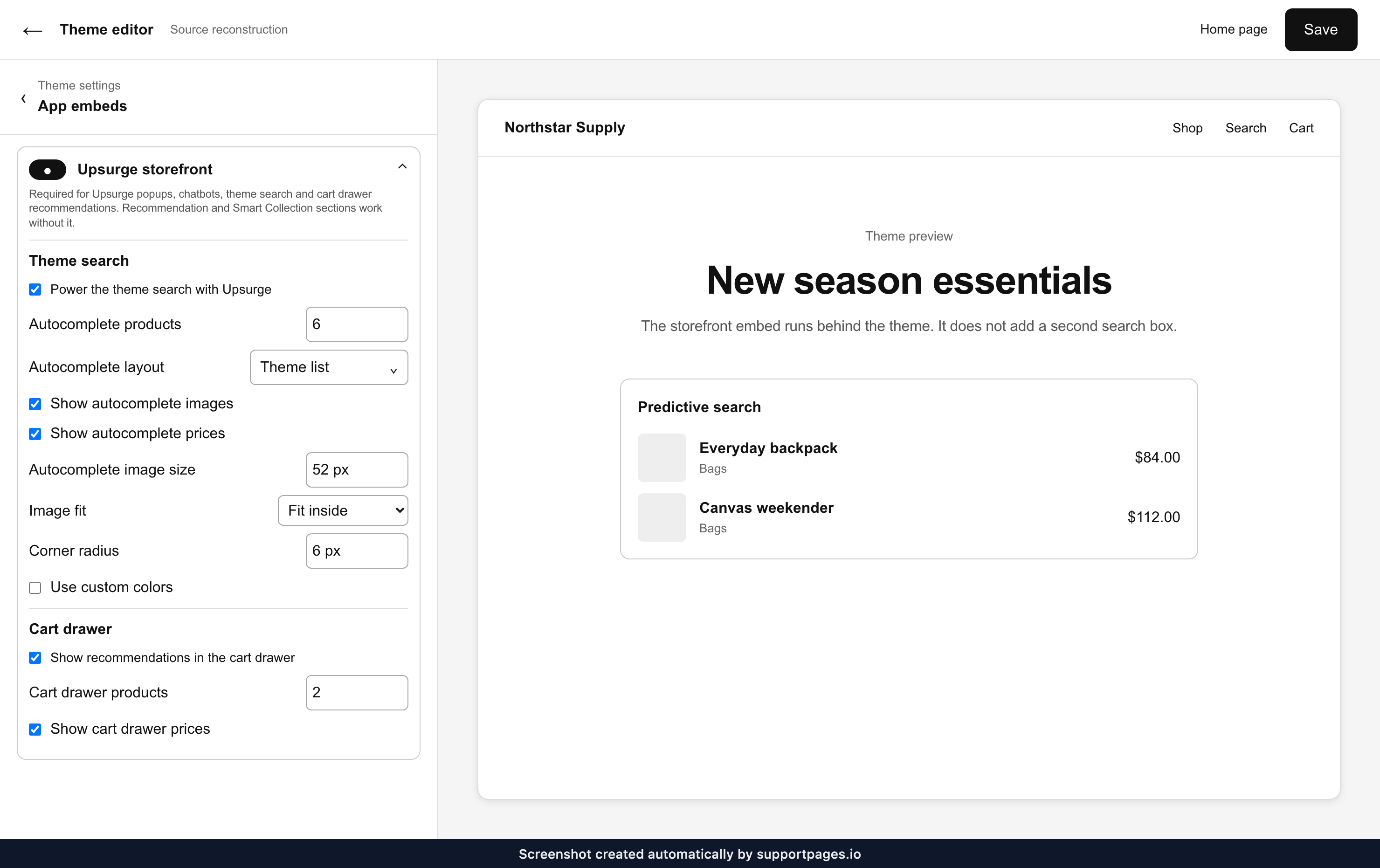
Open App embeds, turn on Upsurge storefront, and expand it. Start with Power the theme search with Upsurge on, 6 autocomplete products in Theme list, images and prices on, and Show recommendations in the cart drawer on with 2 products. These settings enhance the theme's existing predictive search; Upsurge does not add another search box, and Shopify remains the fallback.
Save and refresh the preview
Select Save, then refresh the theme preview before checking the result. The storefront reads these settings when the page loads, so a refresh is required after a change. Recommendation and Smart Collection sections work without the embed, but popups, chatbots, theme search, cart drawer recommendations, and embedded overlays require it.
Storefront embed settings
- Autocomplete: start with 6 products and Theme list. Product grid adds 2–4 grid columns.
- Images: keep images and prices on. Theme list starts at 52 px; choose Fit inside for mixed product photography or Fill frame for a uniform crop.
- Layout: Product grid starts with 12 px spacing. Corner radius starts at 6 px.
- Colors: leave Use custom colors off to inherit the theme. Turn it on only when the autocomplete panel needs its own background, text, and accent colors.
- Cart drawer: start with Show recommendations in the cart drawer on, 2 products, and prices on. You can show 1–4 products.
8. Add an Upsurge recommendations block
On a product, collection, home, or cart template, use Add block inside a compatible section, or use Add section and choose Apps. Select Upsurge recommendations, then place it where shoppers should see the recommendations.
Choose the campaign and appearance
Under Campaign, pick an active or paused recommendation campaign or manual bundle. Keep Heading as Recommended for you, start with 4 Products, and leave Show prices on. Leave Use campaign styling off when the block should inherit the theme and use its local appearance controls. Turn it on when the campaign should supply the heading, subheading, colors, card appearance, and price visibility instead.
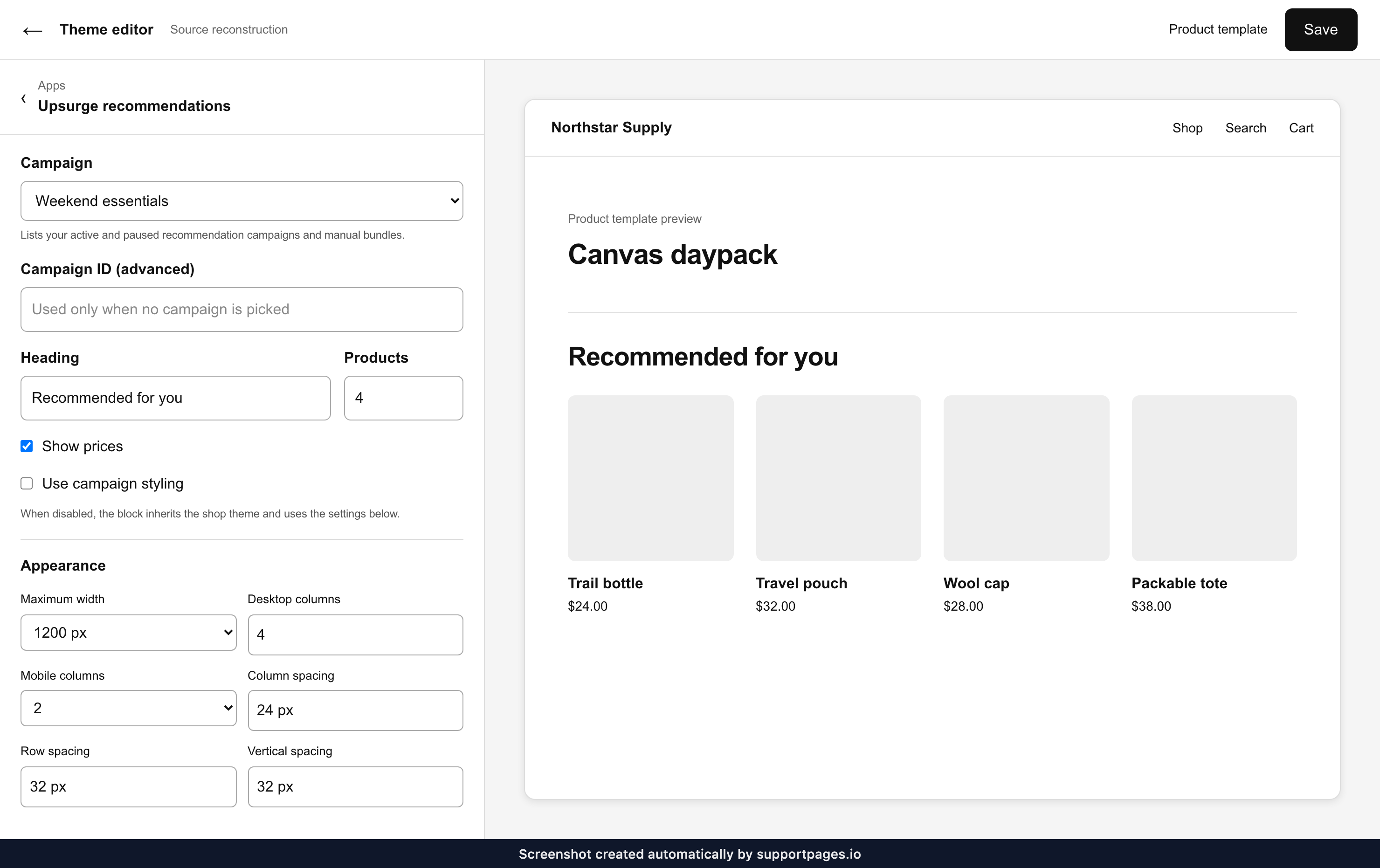
Recommendation appearance settings
- Width and grid: start at 1200 px maximum width, 4 desktop columns, and 2 mobile columns. Choose Full width only when the theme section is designed for an edge-to-edge grid.
- Spacing: start with 24 px between columns, 32 px between rows, 32 px vertical spacing, and 20 px side spacing.
- Heading: start at 28 px and left aligned; center it only when that matches nearby theme sections.
- Cards: Theme minimal, 12 px padding, and 8 px corner radius are a safe starting point. Bordered and Elevated add more separation.
- Images: recommendations start with Square and Fit inside. Use Natural for varied source images, Portrait for fashion-style cards, or Landscape for wider products.
- Colors: leave Use custom colors off to inherit the shop theme. Turn it on to set the block background, text, and accent colors locally.
Campaign selection and fallbacks
Use Campaign ID (advanced) only when you cannot use the picker. A picked campaign takes priority over the pasted ID; when both are empty, Upsurge uses the site default. A paused campaign shows default recommendations until it is resumed.
9. Add and configure Upsurge Smart Search
Add Upsurge Smart Search to the intended template. Under Search surface, choose Search results for a results page or keep the default Smart Collection for a collection grid. Start with 12 Products per page and leave the heading, sorting, and prices on; Show search filters applies only to Search results.
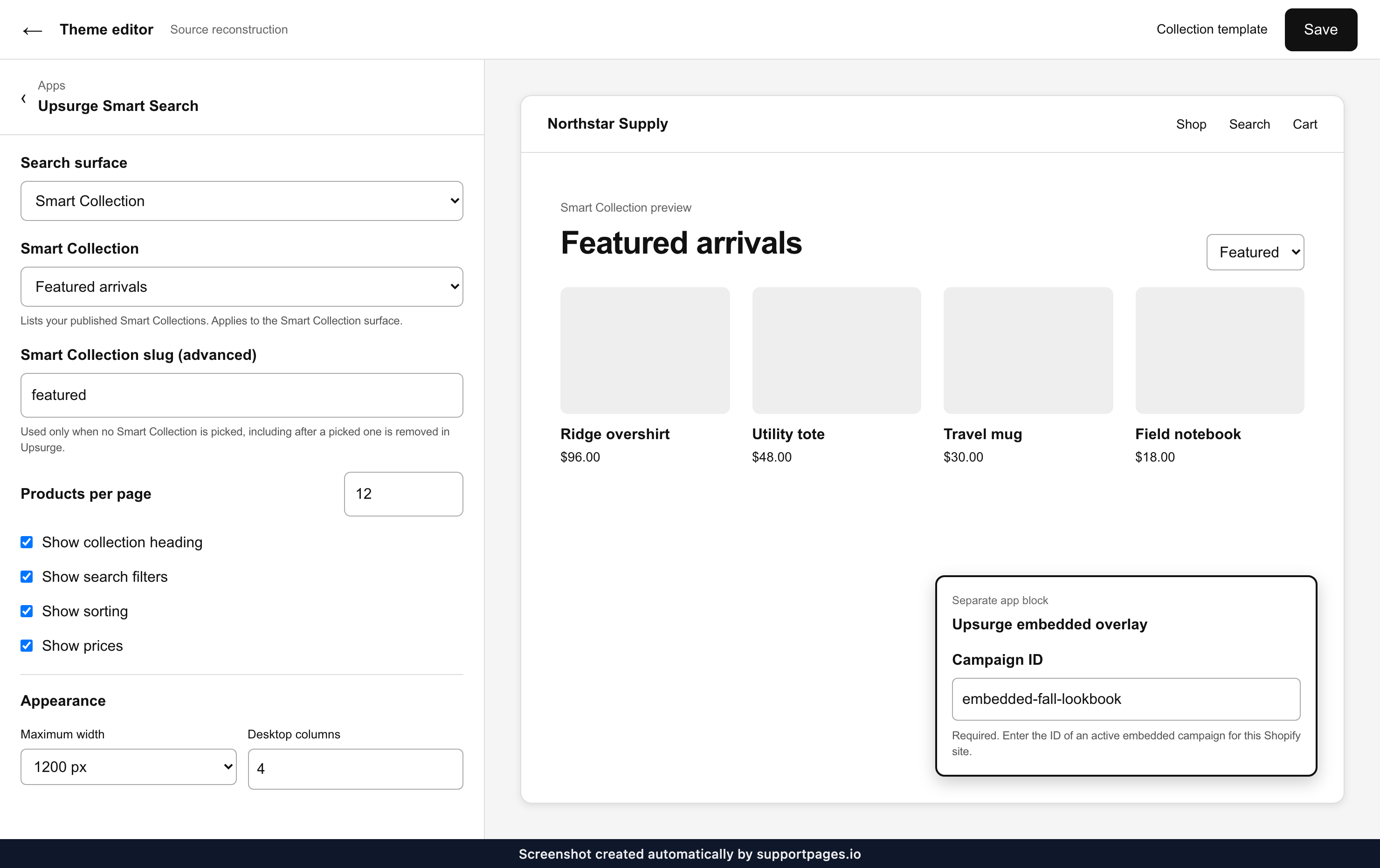
Choose a Smart Collection
For the Smart Collection surface, select a published collection in the Smart Collection picker. Use Smart Collection slug (advanced) only as a fallback; it is the Upsurge collection slug, not the Shopify display title. The default is featured, and it becomes active if a picked entry is later removed, so clear it if you do not want that fallback.
Smart Search appearance settings
- Width and grid: start at 1200 px maximum width, 4 desktop columns, and 2 mobile columns.
- Spacing: start with 24 px between columns, 32 px between rows, 32 px vertical spacing, and 20 px side spacing.
- Heading and cards: start at 28 px, left aligned, with Theme minimal cards, 12 px padding, and 8 px corner radius.
- Images: Smart Search starts with Landscape and Fit inside. Switch to Square or Portrait only when that better matches the product imagery and surrounding theme.
- Colors: leave Use custom colors off to inherit the shop theme, or turn it on to set the section background, text, and accent colors.
10. Set up an embedded overlay
In Upsurge, open Dashboard, then Overlays. To create one, select Create Campaign, choose Embedded under Choose an overlay type, then save and activate it. Embedded campaigns mount responsive content inside a page section and do not use popup trigger or frequency-cap controls.
Copy the overlay campaign ID
Open Dashboard, then Campaigns, and filter to Overlay if needed. Find the active embedded campaign, select the ID shown directly under its name, and copy it. There is no separate Copy ID button.
Add the block to Shopify
Add Upsurge embedded overlay at the intended theme location and paste the Campaign ID for an active embedded campaign on the same Upsurge site. The block supplies its placement automatically. The campaign appears only when Upsurge storefront is on and the visitor has granted both personalization and marketing consent; eligibility and targeting stay in Upsurge.
11. Save and check the storefront
Select Save, refresh the preview, and test the exact template you edited. Repeat for every theme or template where you want Upsurge blocks. If you switch to a different published theme, turn the app embed on there as well.
Check the features you enabled:
- Desktop and mobile: check column counts, spacing, headings, image crops, and prices on both preview sizes.
- Theme search: type a product query in the theme's existing search field and check the autocomplete layout and product links.
- Cart drawer: add an item, open the drawer, and check the recommendations and prices.
- Recommendations and Smart Collections: confirm the selected campaign or collection, product links, sorting, and any applicable search filters. Check a page that uses the template you edited.
- Embedded overlay: check the campaign on the correct site, with its eligibility conditions met and the required visitor consent granted. Do not expect it to appear before consent.
Return to Upsurge App Home and confirm linking, the data syncs you selected, the Web Pixel, and the theme embed show the expected status. Optional profile sync and recommendation blocks do not have to be completed when you are not using them.
Troubleshooting
Installation, linking, and sync
- Store not enabled for the pilot: ask the Upsurge team to add the exact
myshopify.comstore domain to the pilot allowlist. - Install option is unavailable: if the dialog shows Install URL unavailable or Shopify setup is temporarily unavailable. Try again later., wait and retry or contact Upsurge support.
- Link expired: return to App Home and select Link Upsurge again. Each link can be used once and expires after ten minutes.
- Sync stays pending or fails: refresh its status, then retry Start full sync or Start profile sync for the data type that needs attention.
- Theme bootstrap is not observed: confirm you edited the intended theme, turned on Upsurge storefront, selected Save, and previewed that same theme.
Missing blocks, picker entries, or content
- An empty or outdated picker can lag briefly after a publish or campaign change. Save your work, wait a moment, and reopen the picker.
- Draft, archived, and deleted campaigns are not listed. Only active and paused recommendation campaigns, including manual bundles, are available.
- Only published Smart Collections appear. If a selected collection is removed, the advanced slug remains as the fallback until you clear it.
- If JavaScript cannot run, the Smart Collection fallback uses a Shopify collection with the same slug. When none is available, it offers a Browse all products link.
- If an embedded overlay is missing in the editor, confirm the same theme has Upsurge storefront turned on. The editor message is: “To show this campaign, turn on Upsurge storefront under App embeds.”
- After any setting change, select Save and refresh the preview. The storefront does not promise an instant in-editor update.
- If Apps is missing from Add block, try an app-compatible section or Add section → Apps. Some themes and sections do not support app blocks.
- If an overlay is still missing, check its active Embedded campaign type, site, Campaign ID, targeting, and visitor consent in addition to the app embed.
Discount and product-write capabilities remain optional. Enable them only when your Upsurge workflow needs them.